CA PAM FAQ's Page
|
What is CA PAM?
CA PAM is the tool used to manage admin privileged accounts on Fedex server.
This tool provides a java client window/linux/mac page on Windows desktops to work as
the privileged account, or to retrieve the privileged account password.
|
|
Mkacct Requirements?
As of this writing for the moment, Mkacct needs to be running on a RHEL5 or RHEL6 version, and needs to be running 4.0.0-113 version or higher. Your mkacct systems needs to be registered with CA PAM in order to utilize CA PAM. Will update with the procedure to do that once we have it figured out. Mkacct comes with a script to add/remove servers to and from clusters that need CA PAM support. Will provide more information on that as well once it becomes available.
Similair to the LDAP filter, adding a filter called "root:capam/[CLUSTER_NAME]" to your entries in your user files will trigger CA PAM to update those account values with what CA PAM has. The LDAP filter typically looks like "f[LDAP_ID]:[DOMAIN_FILTER]/[LDAP_ID]", so the CA PAM filter should similair in the same way.
FIREWALL RULES: In order for mkacct to work with CAPAM appliances, a few ports and servers need to be reachable by mkacct. If you know you have firewall rules in place, the following servers/ports needs to be opened to ensure mkacct and CAPAM work together:
| Server IP |
Port(s) |
| 10.242.66.88 | 443 |
10.242.8.61
10.242.8.62
10.242.8.63
10.236.12.241
10.236.12.242
10.236.12.243
10.242.5.61
10.242.5.62
10.242.5.63
|
443
28888
|
|
How does CA PAM Interact with Mkacct
Note the following diagram below:
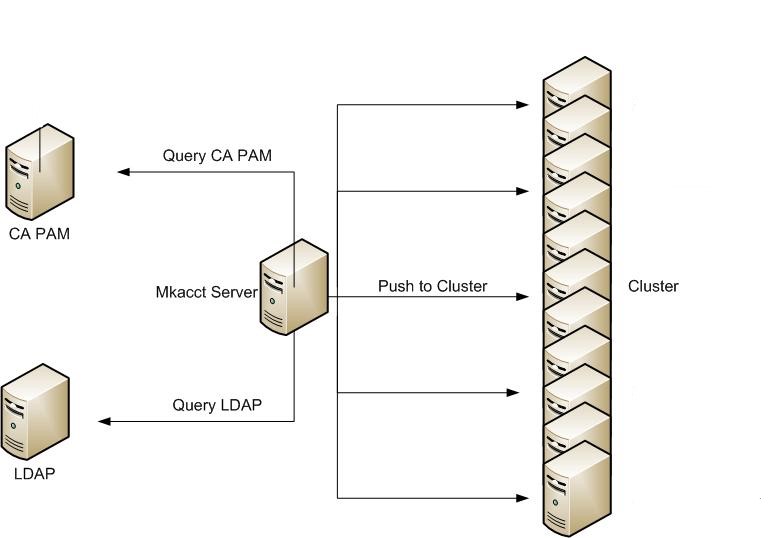
Today, mkacct already makes calls to the LDAP system to retrieve LDAP account credentials. With CA PAM, there is now another call made to CA PAM to retrieve admin/application account credentials. Credentials meaning password/access abilities. Once the credentials are retrieved from both systems, mkacct pushes these changes out to the servers for that cluster. Since CA PAM manages the account passwords directly, there is no need for mkacct to retrieve these credentials whenever they are changed by CA PAM. Mkacct only queries for the information when mkacct needs to make an update.
|
|
How to get more Assistance?
For help with mkacct issues trying to get an account setup in CAPAM, please contact the Tools Team:
Frank Thompson / fwthompson@fedex.com
For help with CA Pam Client Install/Access, refer to infosec site:
CA-PAM website - https://infosec01.prod.cloud.fedex.com/infosecnew-pam-support
CA-PAM PDSM Requests:
- Visit the EPDSM Self-Service Portal directly by going to https://pdsm.service-now.com/assistme
- Click on Request Something
- Click on Security Services
- Click on Information Security Services
- Click on Application Services
- Click on PAM-Support
The PAM-Support assignment group name in EPDSM is FXS_IAM_US_PAM.
|
|
Prepping MkAcct Cluster to Add to CAPAM
CA PAM has an application user called pam_unix_bg. This account password is also managed by CA PAM. Credentials for this account and group should look as such:
account: pam_unix_bg:capam/:111112:111112::0:0:CAPAM Utility Account:/opt/fedex/pam_unix_bg:/bin/bash
group: pam_unix_bg::111112:
This line allows CAPAM to connect to the servers as a utility user to make updates to the account passwords as needed. The pam_unix_bg does not require a AD Group, as no one should ever be accessing this account, so the AD Group setting can be set to no value, or to any value.( it will be ignored if it is set. )
This account also requires a sudo rule to make password updates:
pam_unix_bg ALL = (ALL) NOPASSWD: /usr/bin/passwd
As the pam_unix_bg account will need the sudo rule to manage account passwords on the cluster that are under CAPAM control. If this rule is not there, it will cause bad/questionable error messages from CAPAM when it tries to make the connection and do updates.
|
|
Configure MkAcct Server to use CAPAM
NOTE again you need to be running version 4.0.0-113 or higher to use CAPAM. To start using CAPAM, you need to first install the CAPAM client on your mkacct master server. This will allow mkacct to retrieve passwords(similair to LDAP passwords), so mkacct can push out the right password hashes when updating servers based on what CAPAM has.
service mkacct install-capam
$ sudo yum upgrade mkacct
Loaded plugins: product-id, search-disabled-repos, security
Setting up Upgrade Process
ssa_tools-distro                                                                     | 2.5 kB     00:00
ssa_tools-distro/primary_db                                                          | 577 kB     00:00
Resolving Dependencies
--> Running transaction check
---> Package mkacct.x86_64 0:4.1.0-2.fedex.el6 will be updated
---> Package mkacct.x86_64 0:4.1.0-3.fedex.el6 will be an update
--> Finished Dependency Resolution

Dependencies Resolved

================================================================================================================
Package        Arch           Version                   Repository                Size
================================================================================================================
Updating:
mkacct         x86_64         4.1.0-3.fedex.el6         ssa_tools-distro         571 k

Transaction Summary
================================================================================================================
Upgrade       1 Package(s)

Total download size: 571 k
Is this ok [y/N]: y
Downloading Packages:
mkacct-4.1.0-3.fedex.el6.x86_64.rpm                                                  | 571 kB     00:00
Running rpm_check_debug
Running Transaction Test
Transaction Test Succeeded
Running Transaction
  Updating   : mkacct-4.1.0-3.fedex.el6.x86_64                                                          1/2
xinetd (pid  2316) is running...
Reloading configuration: [  OK  ]
  Cleanup    : mkacct-4.1.0-2.fedex.el6.x86_64                                                          2/2
  Verifying  : mkacct-4.1.0-3.fedex.el6.x86_64                                                          1/2
  Verifying  : mkacct-4.1.0-2.fedex.el6.x86_64                                                          2/2

Updated:
  mkacct.x86_64 0:4.1.0-3.fedex.el6

Complete!

$ sudo service mkacct start

Is this mkacct a production system?[y|n]:
Once you have installed the CAPAM client on your mkacct server, you will then need to create a REST Account to interact with the CAPAM Utility site. To do this, run the following command:
service mkacct configureCAPAMRestAccount
If this is the first time you are running this command, you will need to have a rest account created by the InfoSec group. If this is the case, on the first prompt, enter "RT" for the first value. Refer below for example case:
$ sudo service mkacct configureCAPAMRestAccount

Initializing the configuration for making connections to the
CAPAM Utility Site.  This is needed for when you need to add/remove
servers/accounts to/from CAPAM, can be done behind the scenes with
rest calls.  Most of the information requested from this script, should
come from the RT ticket made from this script when submitted(i.e. enter "RT")
at the prompt below if you have not yet done so.

If you need to submit the RT ticket still, enter "RT" for the answer
below, which will prompt you for needed information, and submit the
request to the InfoSec RT system.
   Create CAPAM Utility Configuration File?[y|n|RT]: RT

What is your LDAP ID to create the RT ticket with?
   LDAP ID: 839524

Infosec will need to know a little information about your mkacct system.
If your mkacct is listed in GRUNT already, you can provide the "Account
Tool Name" listed in the drop down under the "Account Mgmt -> Account Tools"
list.  If not, provide a quick/simple description of your mkacct tools. i.e.
AREA PROD etc
   Short Description of your Mkacct[]: CLOUD-L3-MKACCT

Request Sent to Infosec RT
[root@vm194162 mkacct]#
Once you have the information from the RT ticket for the rest account credentials,
re-run
the script again and enter those values:
[sg839524@s0000013 ~]$ sudo service mkacct configureCAPAMRestAccount


Initializing the configuration for making connections to the
CAPAM Utility Site.  This is needed for when you need to add/remove
servers/accounts to/from CAPAM, can be done behind the scenes with
rest calls.  Most of the information requested from this script, should
come from the RT ticket made from this script when submitted(i.e. enter "RT")
at the prompt below if you have not yet done so.

If you need to submit the RT ticket still, enter "RT" for the answer
below, which will prompt you for needed information, and submit the
request to the InfoSec RT system.
   Create CAPAM Utility Configuration File?[y|n|RT]: y

What is the CAPAM Utility Site Server Name to connect to for making REST Calls
   Rest Server name(i.e. server.fedex.com)[capamutils.prod.fedex.com]:

What is the Rest Account User used for connecting to the CAPAM Utility Site
   Rest Account User[]: CLOUD-L3-MKACCT

What is the Rest Account Password
   Password for Rest Account User[]:
                  Re-Enter Password:
How should this mkacct system be reflected in CAPAM.  This is not really
useful for SA's, but more for InfoSec CAPAM when they identify an issue
within CAPAM, they can reference this name for help from the appropriate
SA group.  This "should" be the alias name of your mkacct system, as if
you ever need to move your mkacct to another server, you will not need to do
this step again.  This is a one time step needed in mkacct.
   How should CAPAM recognize your mkacct system?[s0000013.sys.cloud.fedex.com]: acct.sys.cloud.fedex.com

Configuration File Updated                                 [  OK  ]
|
|
Add/Remove Server/Account MkAcct
To update an account for a cluster, you will need to provide the account in the clients/[CLUSTER].users file:
root:capam/[AD GROUP]:0:0::0:0:root:/root:/bin/bash
The [AD GROUP] is the AD Group/Role Infosec maintains that users can request in IDM to get access to. You can get the list of the AD Groups that are currently supported by running:
/opt/fedex/mkacct/scripts/configCapam -showADGroups
To manually update root password cache file, you can run as "mkacct":
/opt/fedex/mkacct/scripts/updatePassword.pl root
/opt/fedex/mkacct/scripts/updatePassword.pl pam_unix_bg
NOTE:When adding an account to CAPAM, Infosec needs to provide a mapping service to complete the install. The script will prompt for your LDAP ID if it cannot determine if fmo the login. Your ID is used to automatically open the ticket to Infosec RT system to have them create this mapping. During this transition, mkacct will use the cluster name as the account password until Infosec completed the ticket, at which time, CAPAM will start providing the new password/security for the account.
For troubleshooting, refer CAPAM log file to gather more information:
/var/fedex/mkacct/log/capam.log
|
|
Add/Remove Server/Account TESLA
To add an account to CAPAM, query on the account name on the TESLA Web Site.
Down in the password, section, select the "Use CAPAM" checkbox. Below the checkbox,
an "AD Group" text box will pop up. Put in the AD Group in this text box to continue.
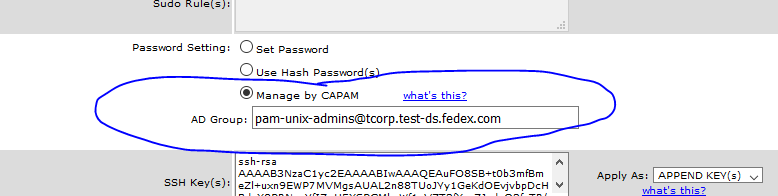
Once completed, you can either wait for the night scan to update the account into CAPAM
for all servers it is on, or if you need it sooner, you can either parse in the server
you want to immediately register in CAPAM, or push a password resync for the account.
|
|
CAPAM Client Issues
If you see this error:
Error occurred during the update. Reason: Failed loading module files for Module https://d21oi5tjuccwe.cloudfront.net/ca-pam/module/win/runtime-1.8.0_201.zip
Or something to that effect, The reason you get this error is because the proxy on the
PAM client needs to be set in order to reach the external server where the new client is downloaded from.
If you get this error, you can set your proxy this way.
First, click the Gear Wheel (settings) icon in the lower-left-hand-corner of the PAM client:
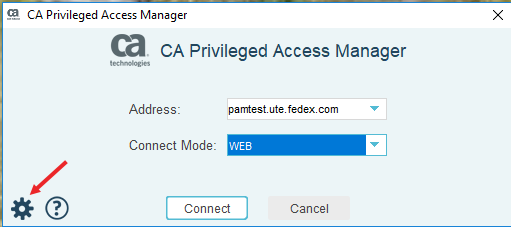
Make sure the Proxy tab is selected (it should come up by default), and then make the proxy
settings match what you have in Internet Explorer, which is most likely what is shown below:
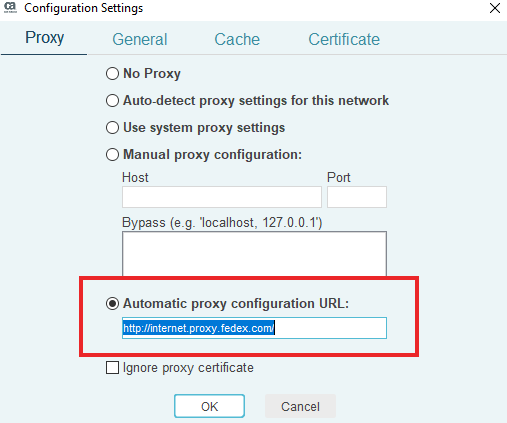
If for some reason this is not the correct proxy setting for you, just open IE and go to
Tools (Alt-X) -> Internet Options -> Connections -> LAN settings and change the PAM proxy
settings to match what you have in IE. But for most users, the automatic proxy config
file http://internet.proxy.fedex.com should work.
|
|